
How to Use the Alerts and Notifications Widget in the Dashboard
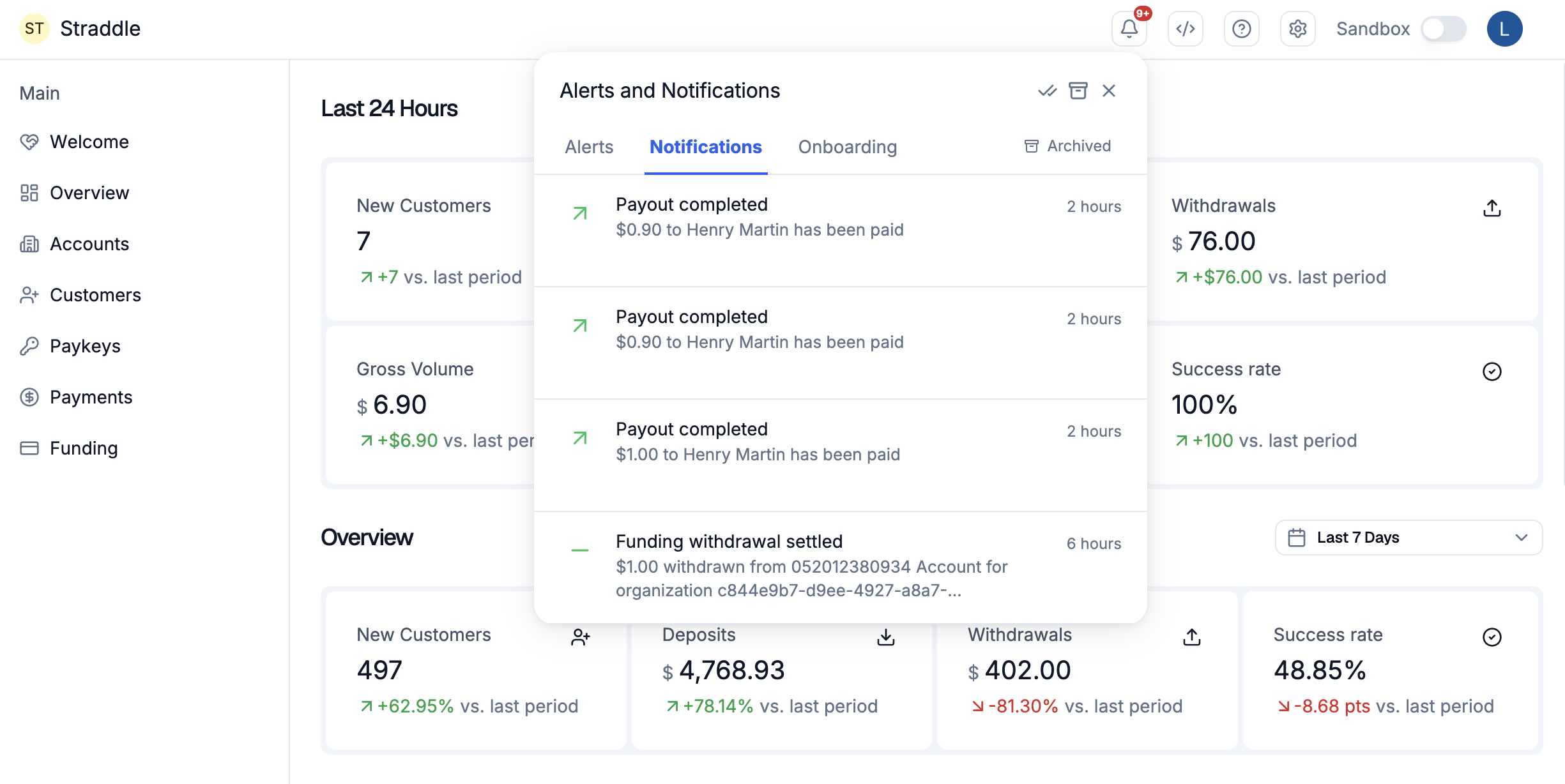
Find out what needs your attention without leaving the dashboard. The Alerts and notifications widget surfaces recent events and links you straight to the page where you can act.
Before you start
The widget appears automatically at the top of the dashboard for every user. No setup is required.
Your widget feed is scoped to your user account. The same feed follows you across every platform and organization you have access to, regardless of which one is currently selected in the dashboard switcher.
Events in the widget are the same events that fire as email notifications. The widget is the in-product surface; email reaches teammates who are not currently in the dashboard.
The widget is for awareness, not inline resolution. Each row links to the existing dashboard page where the work happens.
Steps
Sign in to the Straddle Dashboard. The widget sits at the top of the home page.
Pick a tab.
Alerts lists events that need attention (red icon). Examples: a held charge, a paykey in review, a bank verification failure.
Notifications lists informational events (blue icon). Examples: a completed charge, a settled funding event, a newly approved account.
Read the row. Each row shows a short title, a one-line reason or status, and a relative timestamp (for example
3hor1d).Click a row to deep-link to the dashboard page for that record. The widget does not resolve issues inline; the destination page is where you take action.
Full event catalog
The widget and email notifications share the same event catalog. Every event below is available in both surfaces and can be enabled or disabled per channel in your notification settings.
Alerts (action required)
Red icon, surfaces events you should look at. Each row shows a short title, a one-line reason, and a relative timestamp.
Event | Description shown | Deep-links to |
|---|---|---|
Charge failed |
| Charge detail page |
Charge on hold |
| Charge detail page |
Charge reversed | Post-payment return reason | Charge detail page |
Payout failed |
| Payout detail page |
Payout on hold | Held for review | Payout detail page |
Payout reversed | Post-payment return reason | Payout detail page |
Customer in review |
| Customer detail page |
Paykey in review |
| Paykey detail page |
Paykey blocked (first R29) | Unauthorized return, eligible to unblock | Paykey detail page |
Paykey blocked (repeat R29) | Repeat R29, share Company ID to resolve | Paykey detail page |
Bank verification failed | Verification status returned by bank | Paykey detail page |
Funding failed |
| Funding detail page |
Approaching charge limit |
| Capability request page |
Account declined |
| Customer detail page |
Notifications (informational)
Blue icon, no action required. Confirms that something completed or that an account moved through a lifecycle step.
Event | Description shown | Deep-links to |
|---|---|---|
Charge created |
| Charge detail page |
Charge completed |
| Charge detail page |
Payout created |
| Payout detail page |
Payout completed |
| Payout detail page |
Funding settled |
| Funding detail page |
Account created |
| Customer detail page |
Onboarding started |
| Customer detail page |
Account approved |
| Customer detail page |
Common questions
Do I need to turn the widget on?
No. Every dashboard user sees the widget by default.
What is the difference between the widget and email notifications?
The widget is for in-product awareness when you are already in the dashboard. Email reaches teammates who are not in the dashboard, including shared team addresses configured as a mailbox on the account.
I do not see any items in either tab.
Either nothing has happened recently for the accounts you have access to, or the event types you care about are turned off in your settings.
Related resources
How to set up email notifications in the dashboard for the email companion that uses this same catalog.
Payment status and lifecycle for context on what triggers charge and payout events.
Webhooks overview for the programmatic alternative.