
How to Set Up Email Notifications in the Dashboard
Configure who gets notified when something happens on your account. Add shared team inboxes so Straddle can send notifications to the right people without you building a webhook handler.
Before you start
A mailbox is an email address (often a shared team inbox like
ops@yourcompany.com) that receives email notifications for an account.An account needs at least one mailbox to receive email notifications. Without a mailbox, no email is sent for that account, even though every notification still appears in the in-product alerts and notifications widget for users on the account.
You can add up to 20 mailboxes per account. Every notification is sent to every mailbox on the account.
Mailboxes are per-account. Platforms that manage multiple accounts configure each account's mailboxes separately.
Steps
How to add a mailbox
Sign in to the Straddle Dashboard.
Steps for platforms and accounts.
For platforms: Under Main, open Accounts and select the account you want to configure.
For accounts: Click Company Profile
Open the Mailboxes tab in the row of tabs near the bottom of the account header (next to Bank Accounts and Representatives).
Click + Add mailbox on the right side of the empty state.
Enter the email address in the dialog. Use a real, monitored address: this is where notifications will go.
Click Add mailbox to save.
The mailbox starts receiving notifications immediately, with every event turned on by default.
Choose which notifications each mailbox receives
Per-mailbox preferences are inline on the Mailboxes tab.
On the same Mailboxes tab, find the mailbox you want to configure.
In its Notification preferences section, toggle each event on or off in the Email column. Common events include Account created, Account status change, Bank verification failed, Customer in review, Funding settled, Funding failed, Paykey blocked (first R29), Paykey blocked (repeat R29), Paykey in review, and more.
Changes save automatically.
Each mailbox can receive a different subset of notifications.
What an email looks like
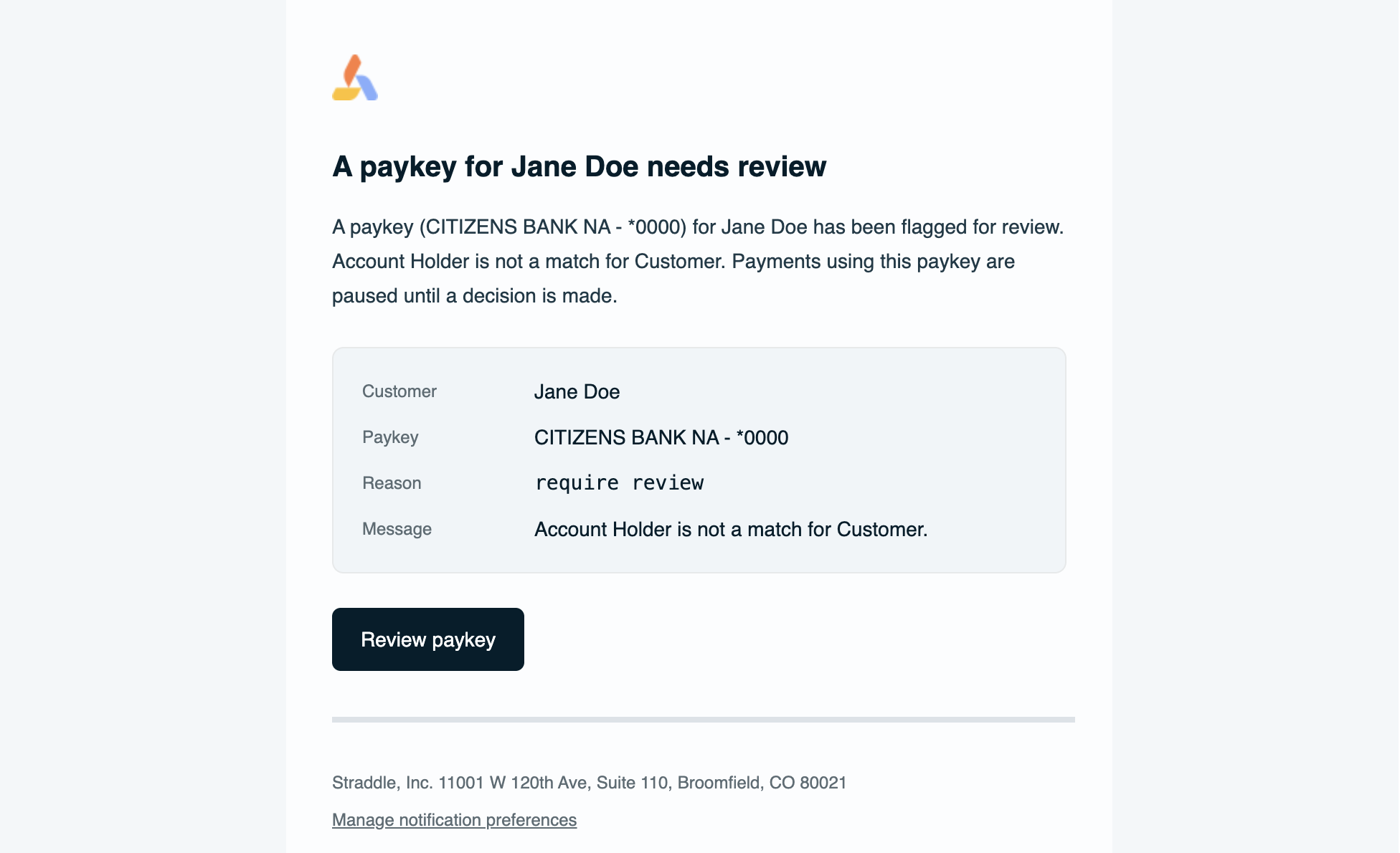
Each email leads with what happened, gives a short explanation, lists the key details, and links you back to the matching record in the dashboard.
What gets sent
Mailboxes receive every notification that fires on the account. Three groups:
Alerts (something needs attention)
Charge failed
Charge on hold
Charge reversed
Payout failed
Payout on hold
Payout reversed
Customer in review
Paykey in review
Paykey blocked (first occurrence)
Paykey blocked, repeat
Bank verification failed
Funding failed
Confirmations (something completed)
Charge created
Charge completed
Payout created
Payout completed
Funding settled
Account lifecycle
Account created
Account onboarding event
For a description of when each notification fires, with deep-link targets and the message shown to the user, see How to use the alerts and notifications widget in the dashboard. The widget and email share the same catalog.
Common questions
Can I send different notifications to different mailboxes?
Yes, you can set up different mailboxes to receive different notifications.
Can I disable specific notifications?
Yes, you can disable notifications per mailbox.
Will customers receive emails?
No, customers will not receive emails.
My mailbox didn't receive a notification.
Check spam: notifications come from a Straddle sending domain; mark the first email as not spam if needed.
If the issue persists, contact support@straddle.com.
Related resources
How to use the alerts and notifications widget in the dashboard for the in-product companion and the full event catalog.
Webhooks overview for the programmatic alternative for systems integration.
Payment status and lifecycle for context on what triggers charge and payout notifications.