
Refund a paid charge
Refund a paid charge from its page in the dashboard to send the money back to the bank account the customer paid from. Anyone who can open Payments can refund a charge, in full or in part.
Before you start
- Only a charge in Paid status can be refunded. For a failed charge, resubmit it instead.
- Each charge can be refunded once. A partial refund uses that one refund, so the rest of the charge can't be refunded later.
Steps
-
In the dashboard, under Main, open Payments.
-
Open the charge you want to refund.
-
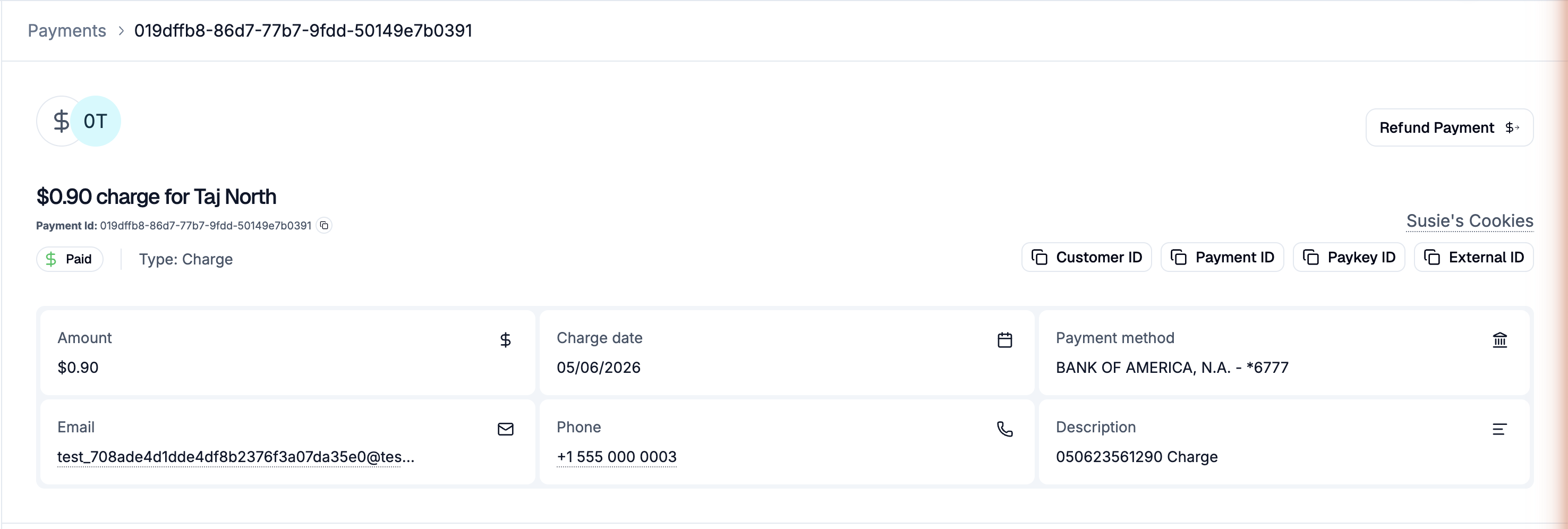
Click Refund Payment at the top right of the charge's page.
-
Under Enter amount, keep the full amount or enter a smaller one. It can't be more than the original charge.
-
Optional: click Add a reason and enter why you're refunding.
-
Click Refund Payment.
What happens next
- The dashboard confirms that the refund was submitted.
- The refund is a new payout to the bank account the customer paid from, with today as its payment date. It moves through the same statuses as any payout.
- The charge stays Paid. Its page shows View Refunded Payment in place of Refund Payment, which opens the refund.
If it doesn't work
- There's no Refund Payment button. The charge isn't Paid, or it's already been refunded and shows View Refunded Payment. Payouts, refunds included, can't be refunded.
- Refund Payment is greyed out in the refund window. The amount is $0 or more than the original charge.
- The dashboard says the charge can't be refunded. It changed after you opened it: someone else refunded it, or it stopped being Paid, for example after a return. Refresh the page to see its current status.
- The refund was cancelled. The same change happened after you submitted the refund but before it was processed.
Related
- Resubmit a failed payment
- Payment statuses, in the docs
- Refund a charge through the API, in the docs